
The digital tattoo design process is often faster and more precise than hand-drawn tattoo designs, making perfect stencils that are easy to resize.
However, learning how to create art digitally can be really frustrating if you don’t know how to use the Procreate app.

To help, we’ll be breaking down the basic settings you need to know and answer to the most common questions about digital design like how to:
Get the “Paper” Feel on Your iPad
The screen of an iPad can feel really slick, especially if you’re used to drawing on thicker sketchbook paper. You can make your iPad screen feel more like paper textures by putting on a matte screen protector.
Using the Procreate App
How to Organize Your Work with Stacks
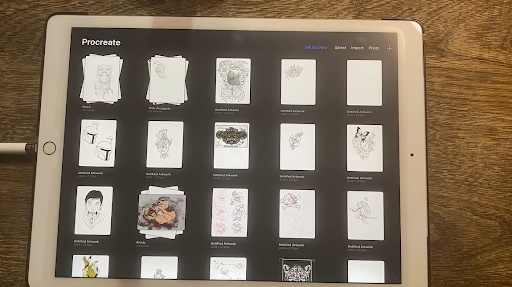
When you open the app, you’ll see your “Stacks,” which look like mini stacks of paper. You can name and organize these stacks however you’d like. For example, you can have a stack of “Finished Tattoo Designs” or “Art Prints.”
You’ll also see individual drawings. If you want to stack them together, hold down on one drawing and drag it on top of the drawing you want to “stack” it on top of. You can tap the title of the stack to rename it.
How to Pick a Canvas Size
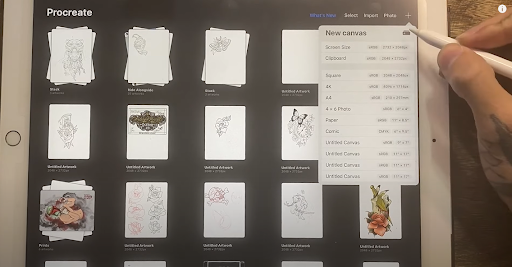
Even though you’re designing digitally, you’ll still need to pick the “size” of your paper. If you plan to print off your tattoo design, you’d want your canvas to be the same size as a piece of printer paper (8.5” x 11”).
If you are working with bigger designs (for example, prints and posters), make sure to adjust the canvas to that larger size.
Pro Tip:
The bigger you make your design, the fewer layers you can use. If you're working on making a design for a poster, you're not going to have a ton of layers, which can make it harder to create a good design. Generally, we recommend sticking to 11”x17” for bigger prints.
How to Use Layers
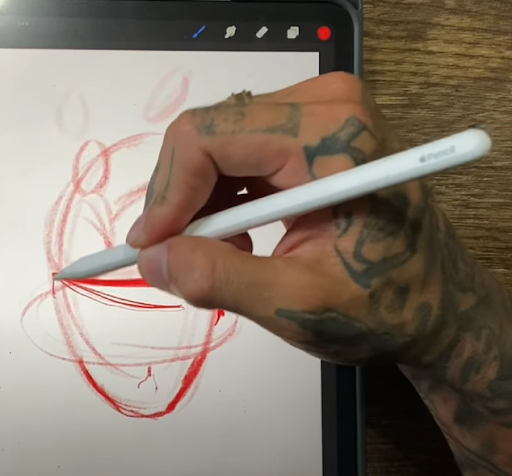
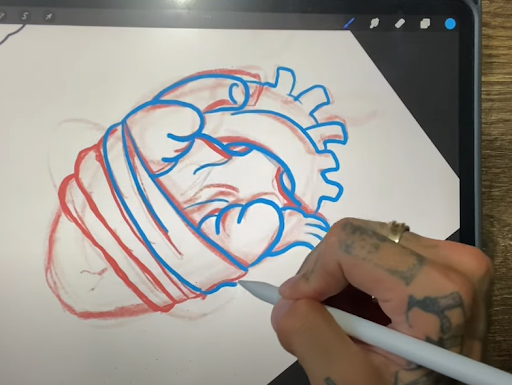
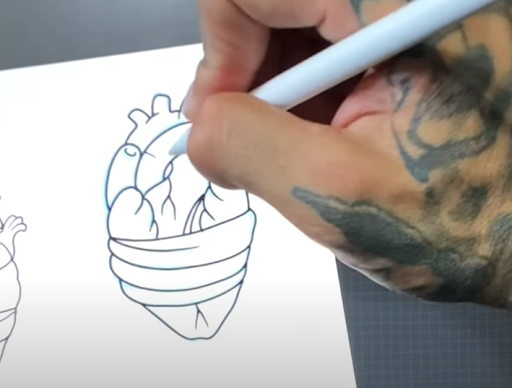
When you are drawing a tattoo design on an iPad (some of our artists prefer the iPad Pro), you want to make sure each part of the drawing process is on a different “layer.”
For example, your sketch, your rough draft, and your final design will all have their own “layers.” If you make a mistake while you’re drawing, it’s easy to fix because you’ll only be working on that layer and all the other layers won’t get messed up.
Pro Tip:
You can lower the opacity of a layer. For example, if you still want to see your red sketch but not have it be so noticeable, you can lower the opacity. To change the opacity, click the “N” on the layer.
Using Layers to Draw with Flow
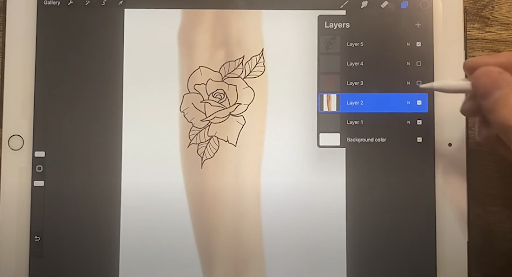
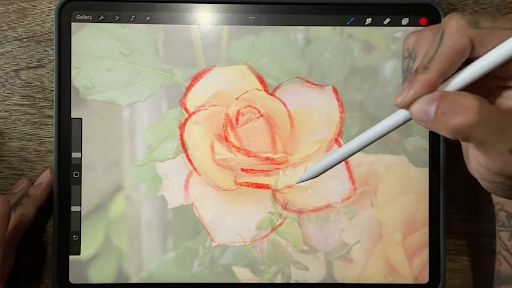
We recommend having a layer with a picture of the body part you’re designing for. This will help you include the flow of the body in your tattoo design.
If you are using a reference image, you can also include that on its own layer.
How to Get Perfect Shapes
If you want to make a perfect circle, all you have to do is draw a circle and hold it. If it’s more of an oval shape, but you want an absolutely perfect circle, you hold down the pen like normal and use your other hand and press a finger on the screen somewhere next to the circle.
This process will work with other shapes as well.
How to Add Color
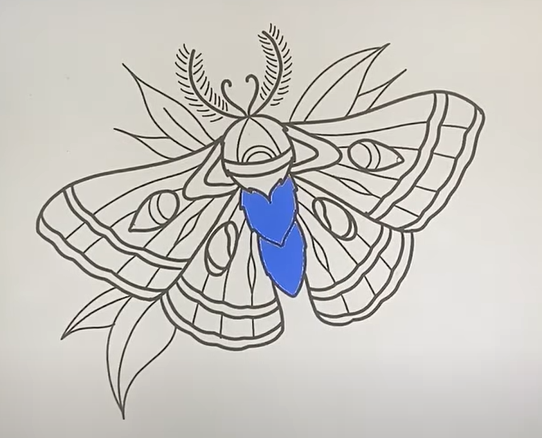
If you’re doing a design in color, it helps to have the color on a separate layer so it’s easy to “hide” the color and see just the linework for your plain stencil.
However, if you go and try to color on a new layer without any linework, you’ll be coloring “freehand.” This makes it super easy to color outside the lines:
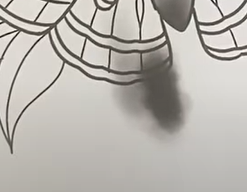 | 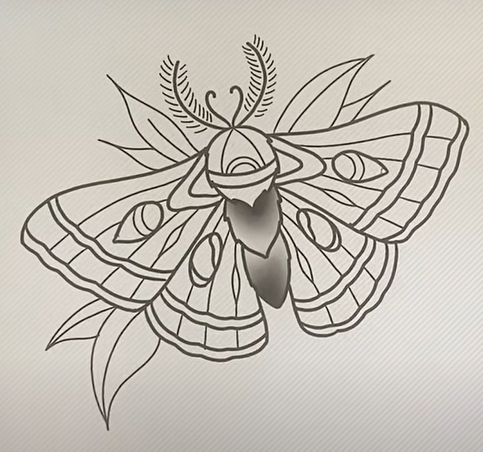 |
Incorrect: Adding shading without setting linework as a “Reference.” | Correct: Shading sectioned off by linework. |
To make it super easy to color inside the lines, go to the layer that has your linework, double tap it with your pencil, and make it a “Reference.” Then, you can easily add shading and color inside your linework on different layers.
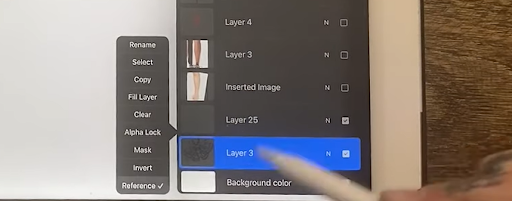
When you pick an area to fill in, the program won’t let you draw outside the lines. It’ll look like you always color perfectly inside the lines, making it one of the most valuable tools in the app.
How to Use Different Brushes
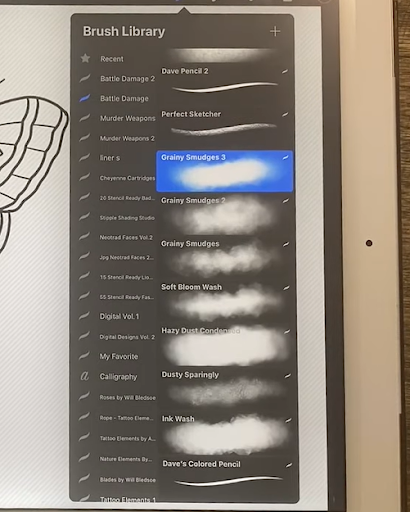
While you’ll want to use a plain pencil brush for creating your sketch (Brandon uses “Perfect Sketcher”), you can use different brushes to add texture and your personal style.
Pro Tip:
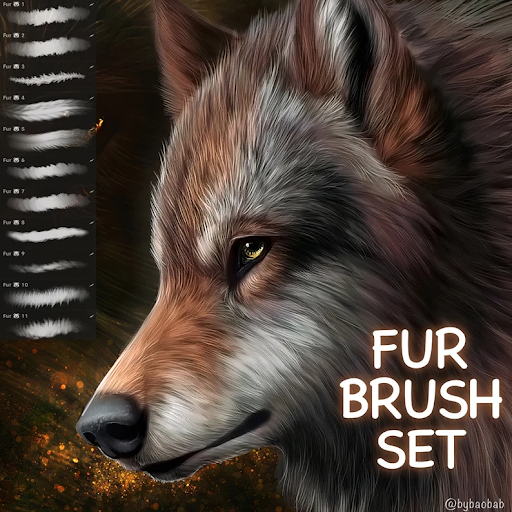
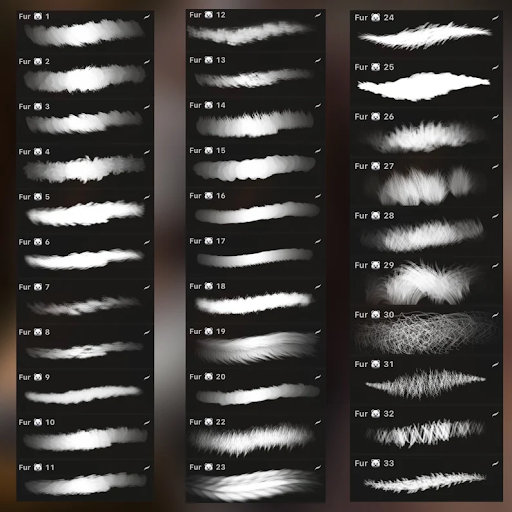
You can make your own brush sets or purchase brushes online from brush set creators like Tattoo Smart (by tattoo artist Russ Abbott) and Etsy to get an instant download for a one time payment.
For example, beyond basic brushes, you can get “snake brushes,”
Our Artists’ Favorite Procreate Brushes
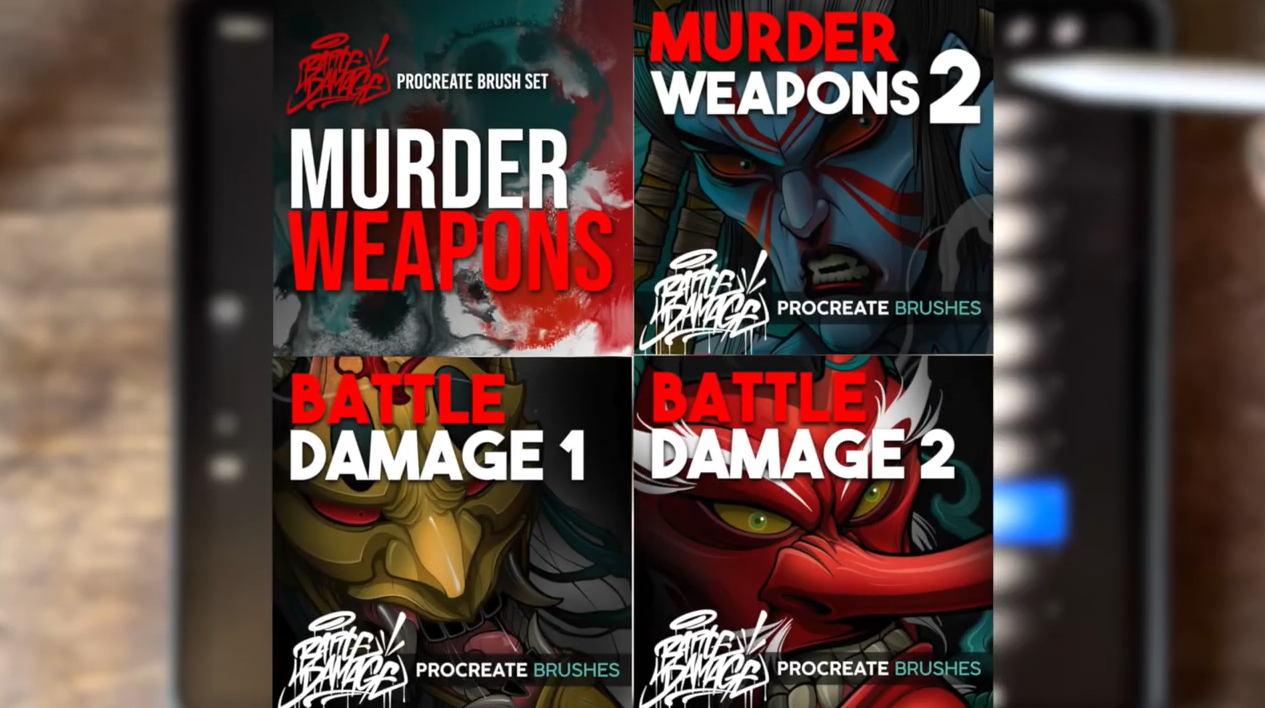
The Perfect Sketcher brush in the Battle Damage set works great if you're just trying to sketch out an idea. This will help you know where everything needs to go so that you can set up your drawing appropriately.
Sushi Liner allows you to have different line weights in your line without changing brushes. The Sushi Liner brush will start out thin, and you can press harder to create a thicker line.
Digital Pen Steady in the Liners set works well for tattoo designs and precise lines. It makes a nice, consistent line the whole way through that you could print off on a stencil machine.
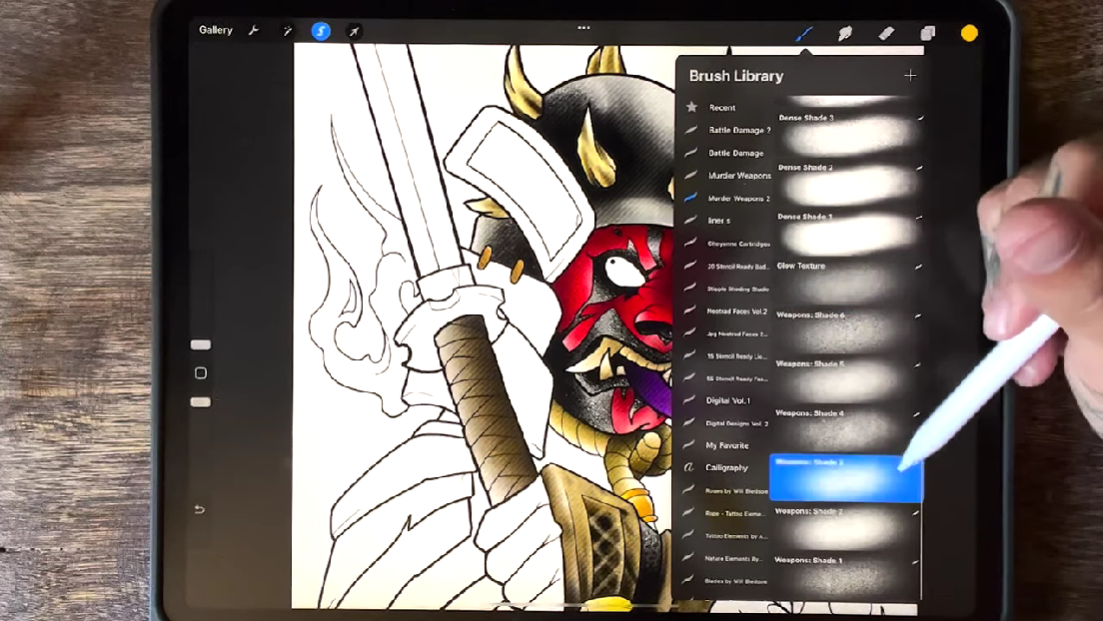
Murder Weapons 2 Particle Smoke brushes are a complete set that let you create a textured smoke effect that is good for backgrounds. This makes it much quicker and easier to draw smoke.
We suggest Weapons: Texture from the Murder Weapons set for shading.
Weapons: Texture helps you make digital drawings that look like you’ve actually drawn or painted them on a piece of paper.
Murder Weapons 1 has a lot of different shade brushes you can use as part of the design or for your backgrounds.
Using Procreate Stamps
Stamps are brush sets on Procreate that have pre-drawn design elements. You can find stamp sets for just about anything you want to draw, from elements of nature like clouds and leaves, to geometric patterns. There are many sets created specifically for tattoo designs. You can even save new stamps from your own designs.
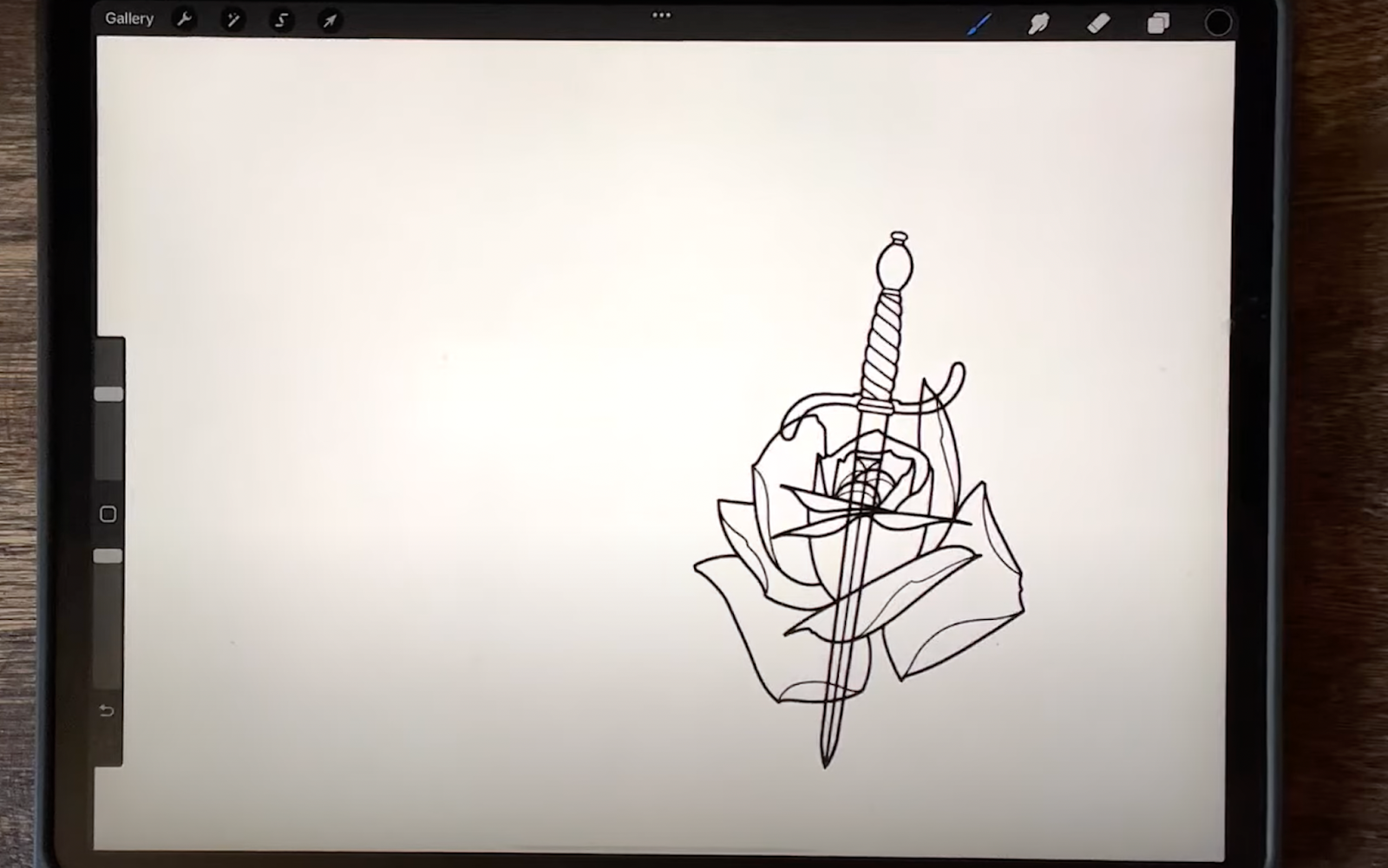
Procreate stamps can make drawing tattoo designs easier and faster, especially if you’re new to drawing or learning a new style. Here’s how you can use stamps in your work to develop your skills and work faster.
Your stamp choice will depend on the style of tattoos you want to create. Below are a few types of stamps we like and recommend.
Rope
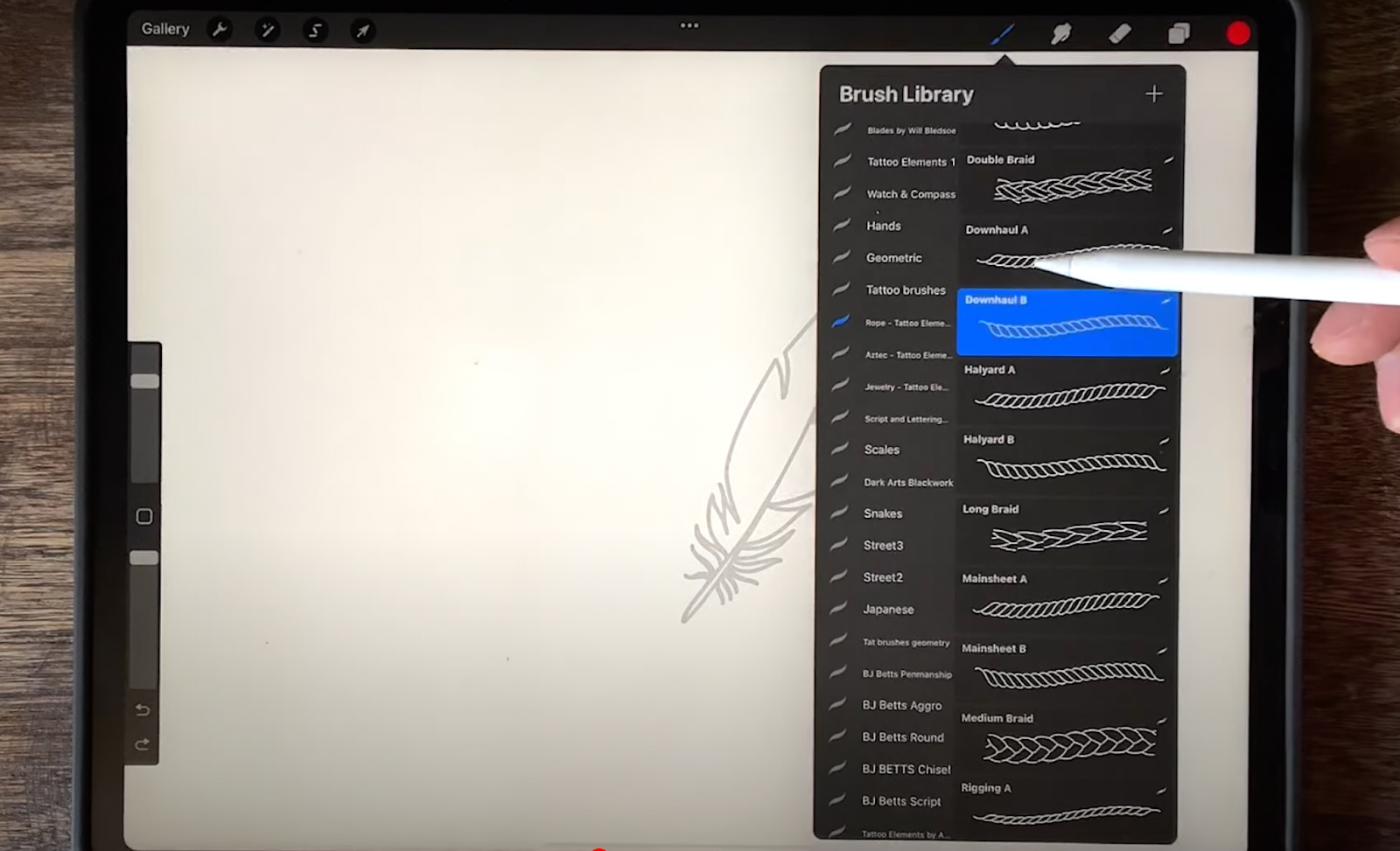
Rope stamp sets on Procreate aren’t perfect, but they will save you a lot of time. You can use a rope stamp just like a regular brush– your brush strokes will look like a rope rather than simple lines.
Watches
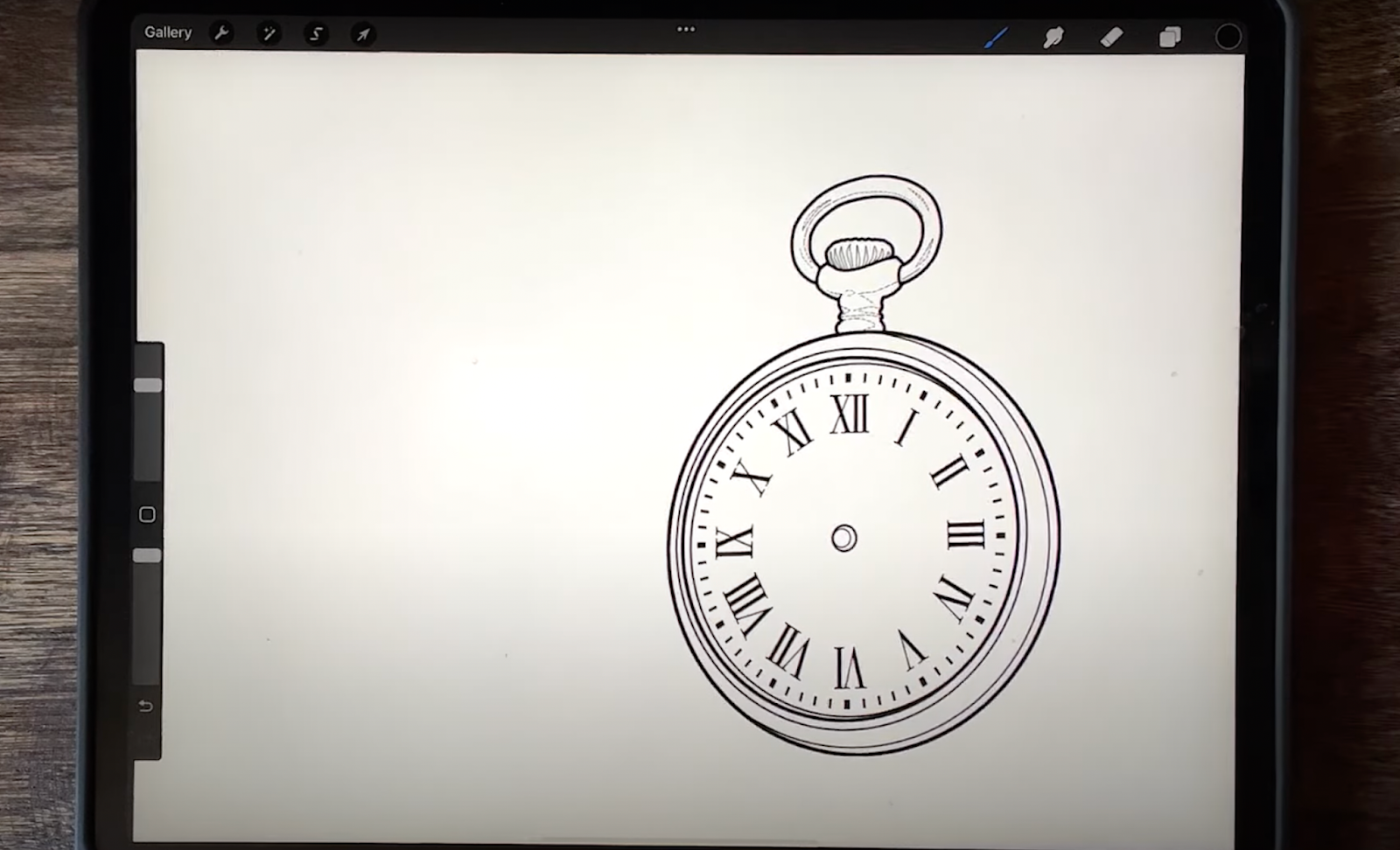
Watches and clock designs require a lot of small, precise details that can be frustrating to draw and eat up a lot of time.
With watch stamps, you can select the design you’d like to work with, tap the screen once with your pencil to put the watch on your paper, and give yourself a great starting point.
Flowers
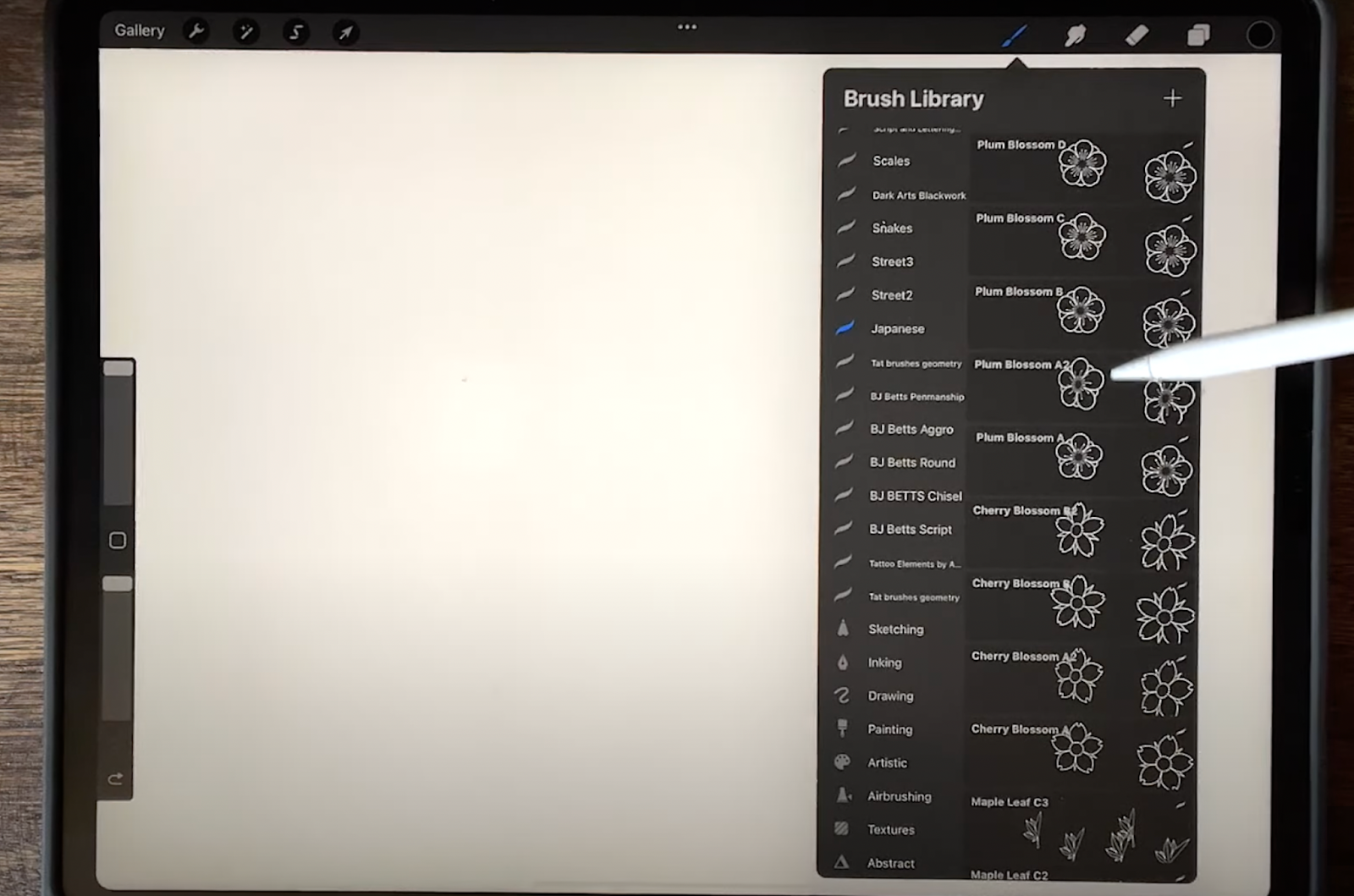
There are many types of flowers, like poppies and roses, that can have widely varied shapes and sizes. You can add bits of your own style to these flowers.
Script
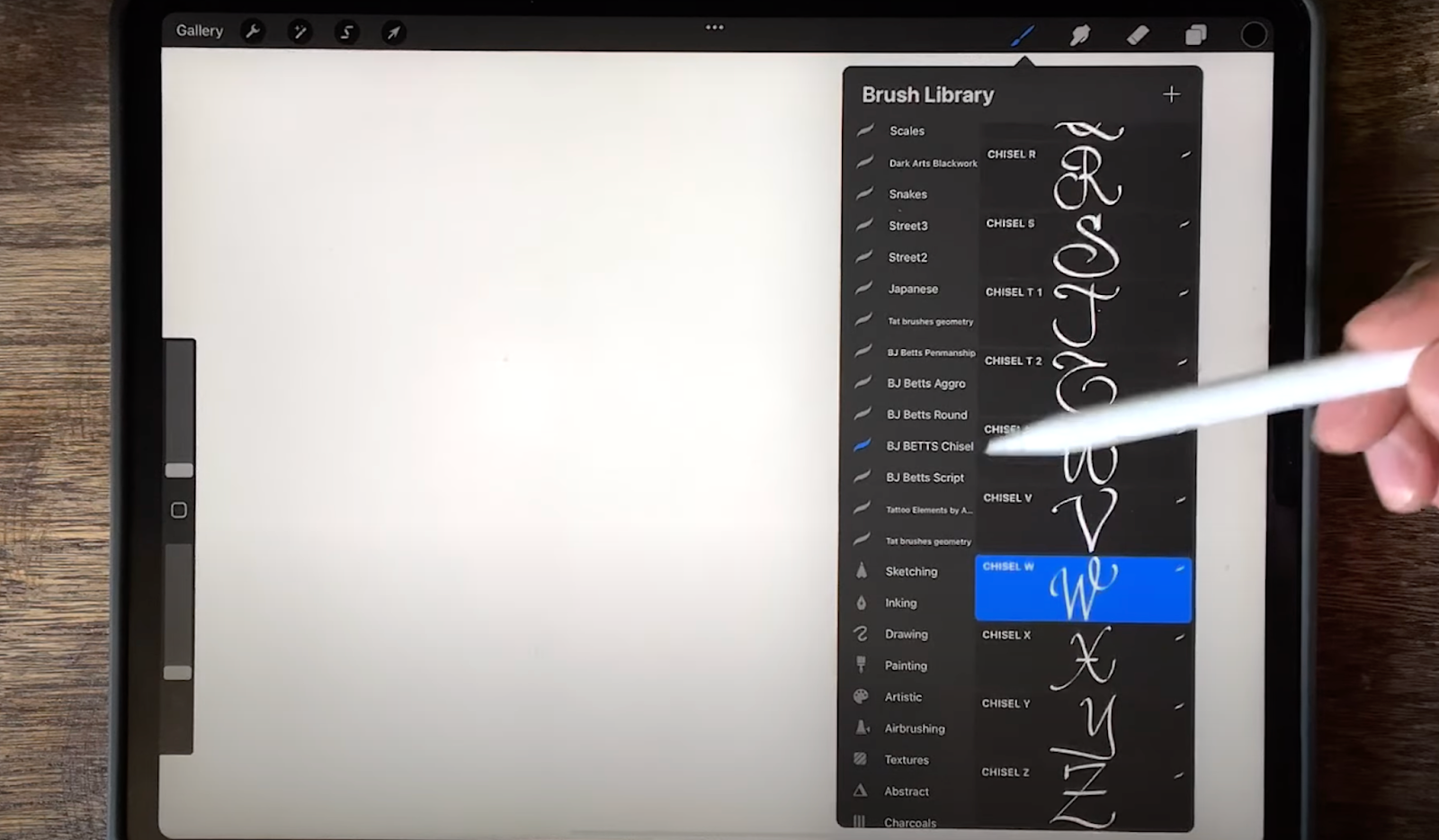
If you struggle with lettering or script, stamps can be useful. You can use these sets to teach yourself how to draw and write in different lettering styles. We like the stamp sets by BJ Betts.
How to Create Realism Designs in the Procreate App
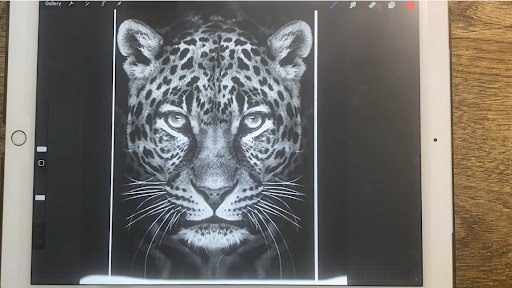
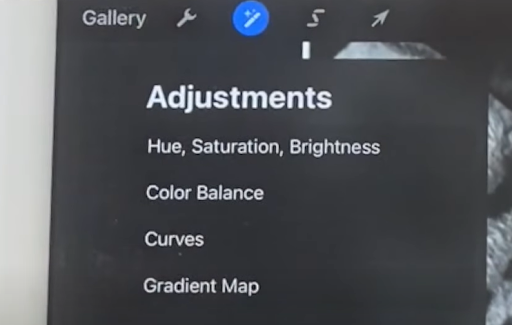
The image above is pretty dark on its own. It’s highly recommended to use the “Hue, Saturation, Brightness” option to see the highlights and any details in the dark areas.
If you’re doing a realistic tattoo, it can be helpful to have a couple different versions of the image printed off: a dark one, a lighter one, and one right in the middle so you can see all the depth in the image.
The settings you’ll use the most often are saturation and brightness:
Learn from Professional Tattoo Artists with the Artist Accelerator Program
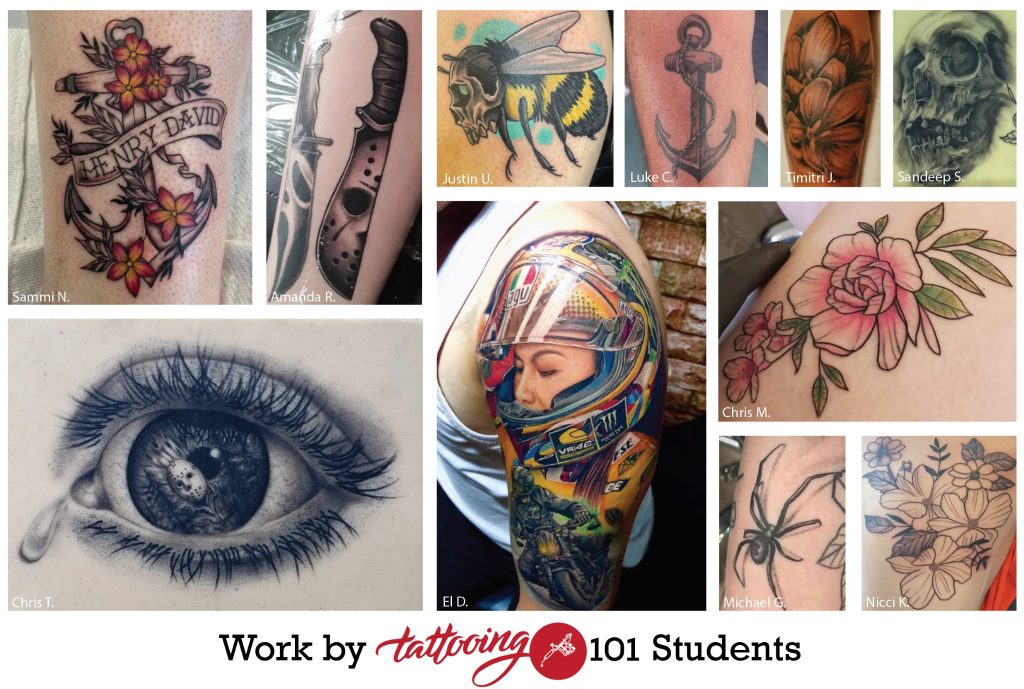
Having a career in tattooing is not only fulfilling, but it’s also the most stable way to make a living as an artist. However, for decades, the process to become a tattoo artist has been notoriously difficult.
The apprenticeship process requires aspiring tattoo artists to work 50-60 hours a week without pay for 2-4 years. That, combined with the toxic culture of abusing apprentices, makes getting into the industry almost impossible for newcomers.
That’s why we created the Artist Accelerator Program. Our online course provides a simple, structured way of learning to tattoo that has been proven to work by over 2500 successful students, with many of them having gone on to open their own shops all around the world.
Inside the program, we’ll take you through every step of the tattooing process in 9 clear, easy-to-follow modules and support you along the way within the Tattooing 101 Mastermind online community.
In the Mastermind group, you’ll collaborate with other students, get answers to your questions, and receive personalized video feedback on your artwork and tattoos from professional tattoo artists. With this friendly community of both new and experienced tattoo artists, you’ll never be stuck again.
When you join the Artist Accelerator Program, you’ll have instant access to the full course and the Mastermind community, as well as our 30-Day Flash Challenge and recorded interviews with tattoo artists from all over the world.
Click here to learn more about the Artist Accelerator Program.