

Drawing on the wrong layer in Procreate can mean extra hours of work if you don’t know how to remove extra elements from your linework layer.
In this article, we’ll explain how to remove all your sketching lines and just keep your finalized linework if you accidentally drew your final design on a sketching layer.Follow-Along Video
Watch this follow-along video showing you which features in Procreate to use to save your stencil. The steps below will review each step.
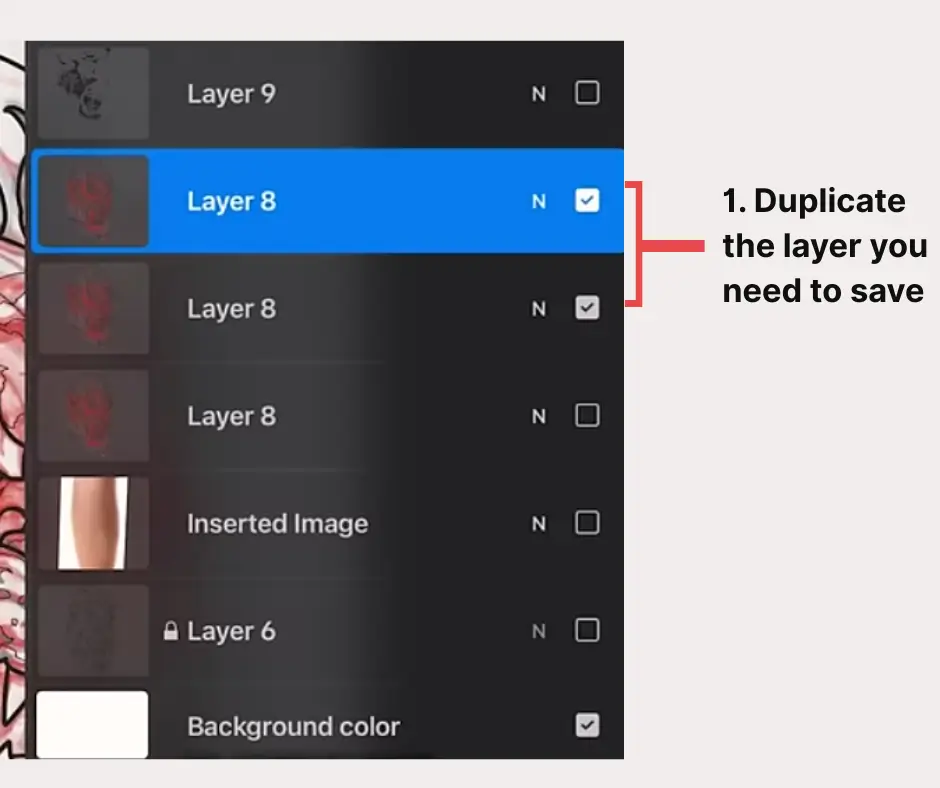
Duplicate the Layer that needs to be saved.
Pro Tip:
to be extra careful, make sure to duplicate the layer twice (example: how there are three versions of Layer 8). Turn one of them off and lock it. This will protect what you have so far before proceeding, just in case something goes wrong.
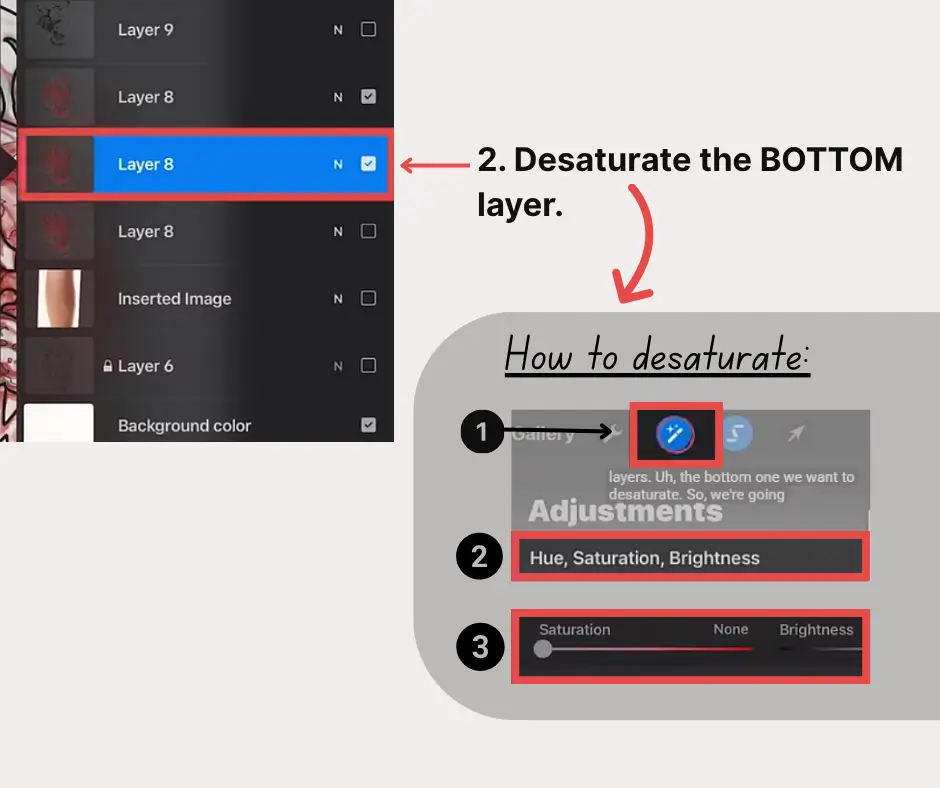
Desaturate the BOTTOM layer.
To desaturate, choose “Adjustments” (the magic wand in the upper left corner) and select “Hue, Saturation, Brightness.” Turn the Saturation all the way down by moving the slider to the left.
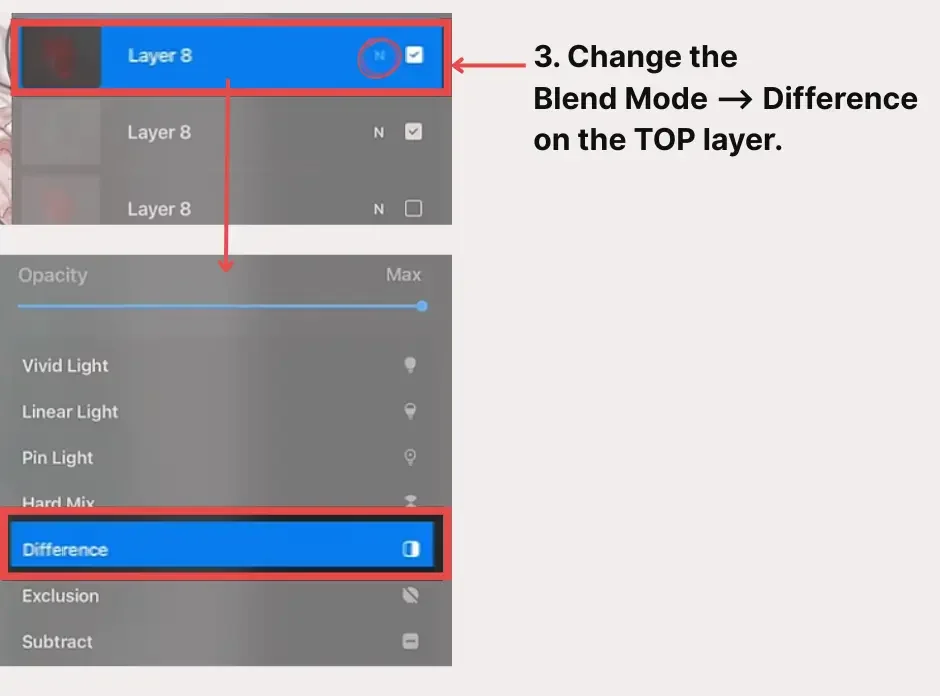
Change the Blend Mode to “Difference” on the TOP layer.
Remember that we have two versions of your layer. Make sure to select the TOP layer and tap the “N” next to the checkmark indicating that the layer is visible. This will lead to a dropdown showing different blend modes.
By default, this setting is set to “Normal.” Scroll down and select “Difference.”
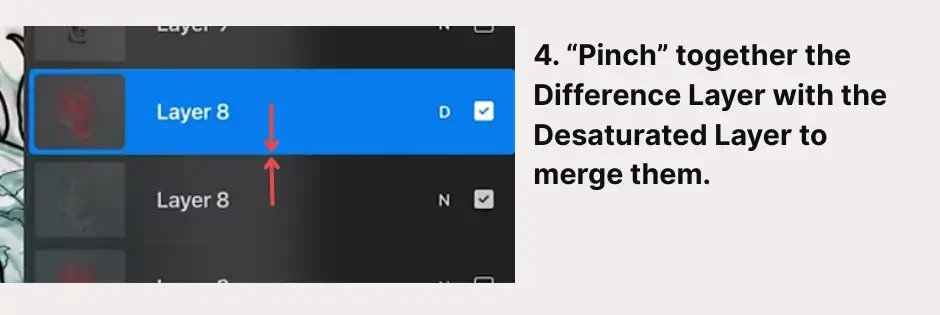
Merge Your Two Layers
At this point, you’ll have the bottom layer that we desaturated and the top layer that has the “Difference” blend mode turned on. You can merge these layers into one by “pinching” them together on the screen.
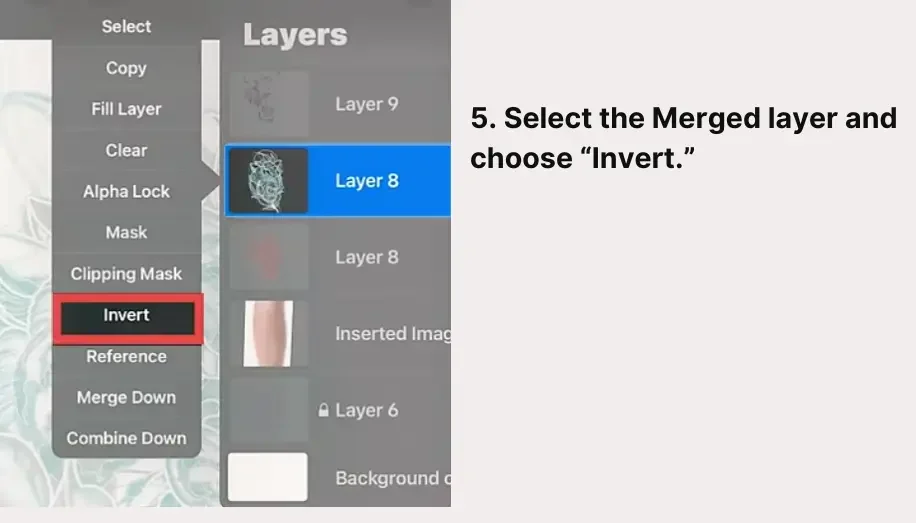
“Invert” the Merged Layer.
Make sure you’re still on your newly merged layer and choose “Invert.”
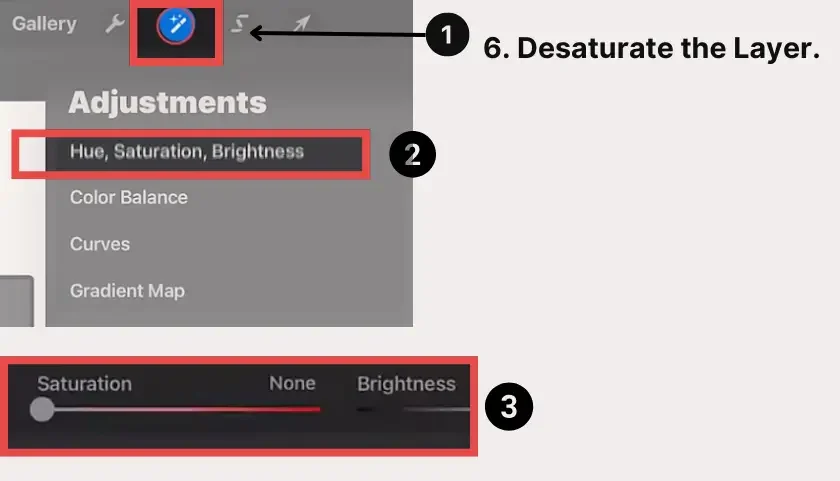
Desaturate the Layer.
To desaturate, choose “Adjustments” (the magic wand in the upper left corner) and select “Hue, Saturation, Brightness.” Turn the Saturation all the way down by moving the slider to the left.
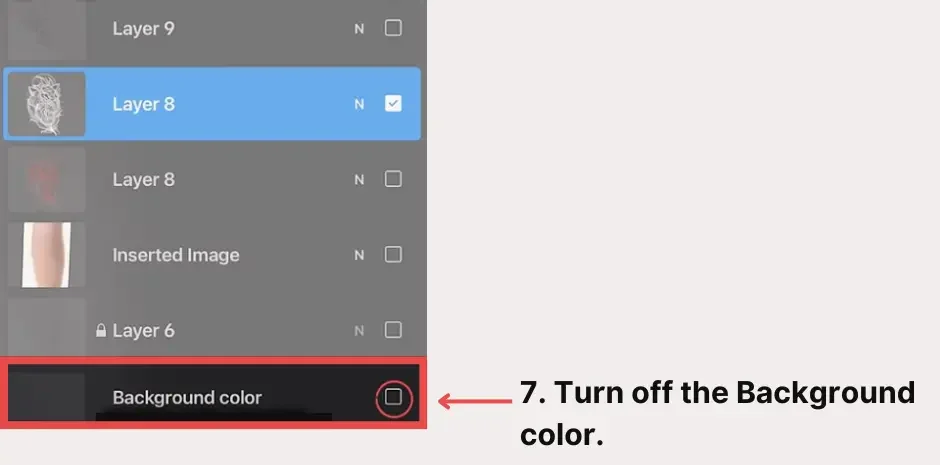
Turn off the Background color.
The layer labeled “Background color” is probably the bottom layer in your document. Tap the checkmark to the right to turn the background color off.
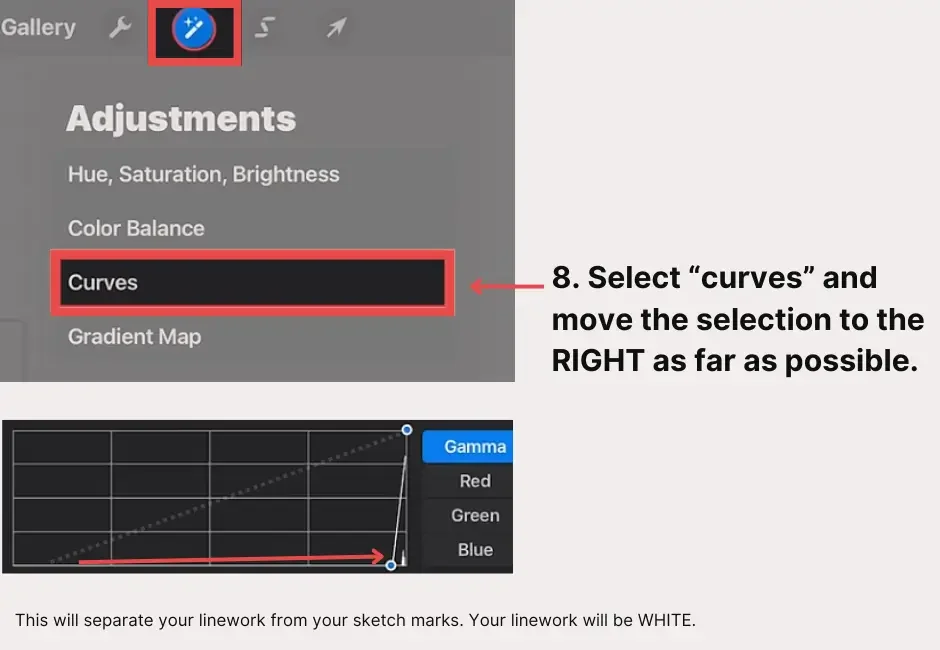
Select “Curves” and Move All the Way RIGHT.
Choose “Adjustments” (the magic wand in the upper left corner) and select “Curves.”
At the bottom of the screen, you’ll see a chart. Move the selection as far to the right as possible.
This step is what will separate any sketch marks on the layer from your finalized linework. At this point, the sketch will be black and your linework will be white.
“Invert” the Layer.
Tap the layer and choose “Invert.” At this point, the linework will turn black and any sketchmarks will turn white.
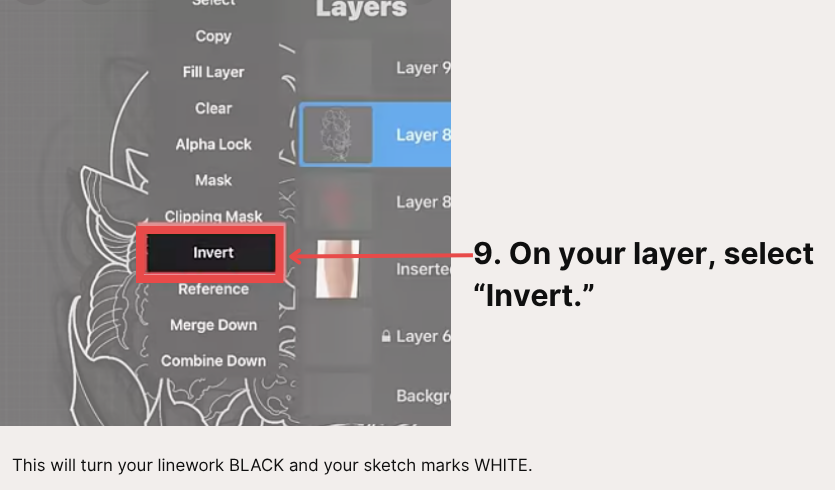
Turn on the Background Color.
The layer labeled “Background color” is probably the bottom layer in your document. Tap the checkmark to the right to turn the background color on.
Your drawing will look “normal” with the black linework on a white background. However, make sure to follow the rest of the steps.
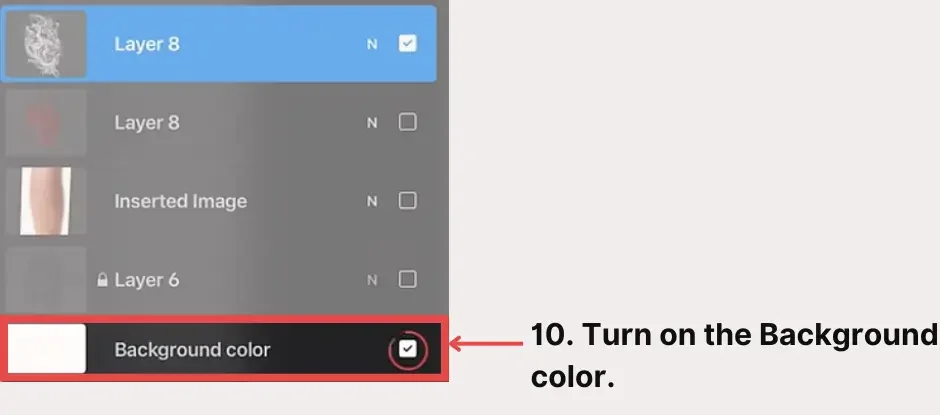
Add a Mask.
Tap the layer and choose “Mask.” This will add a layer to your document directly above your selected layer. It will be labeled as “Mask.”
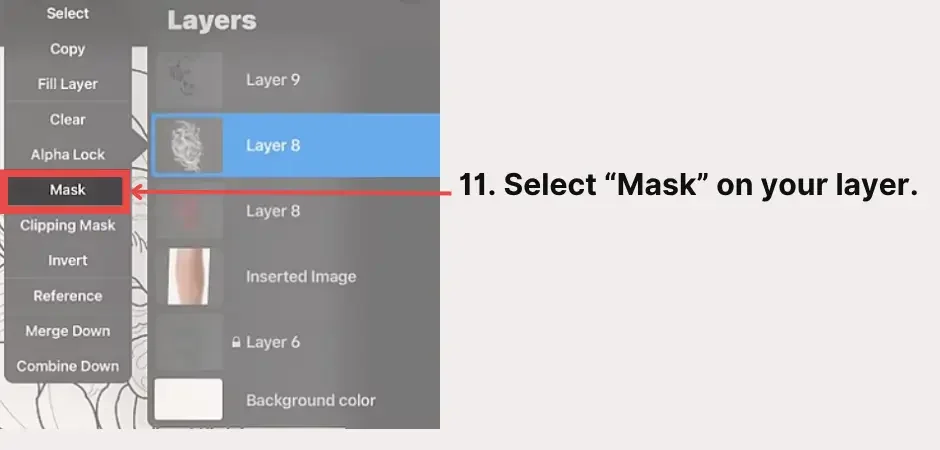
Copy Your Layer.
Don’t select the Mask yet. Tap the layer you’ve been working on and choose “Copy.”
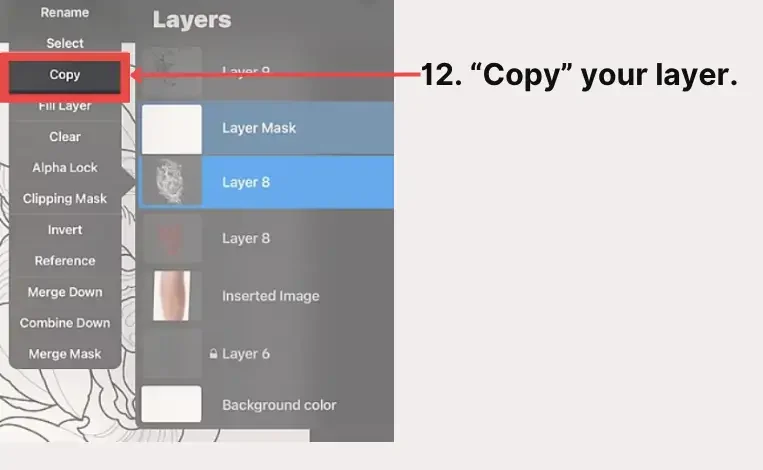
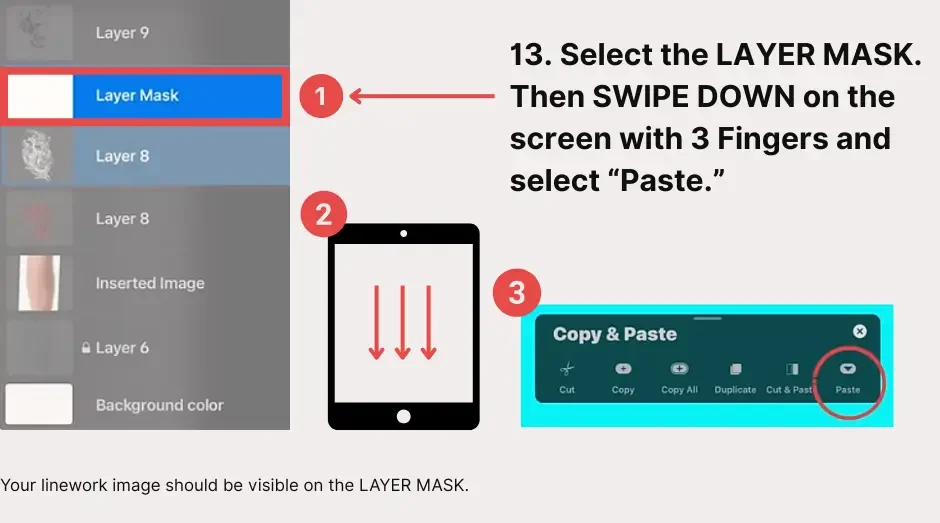
Paste the Copy of Your Linework Onto Your Layer Mask.
Select the Mask, swipe down with three fingers. This will bring up a new box of “Copy & Paste” options. Choose “Paste” on the far right.
Doing this will make your linework visible on the Mask.
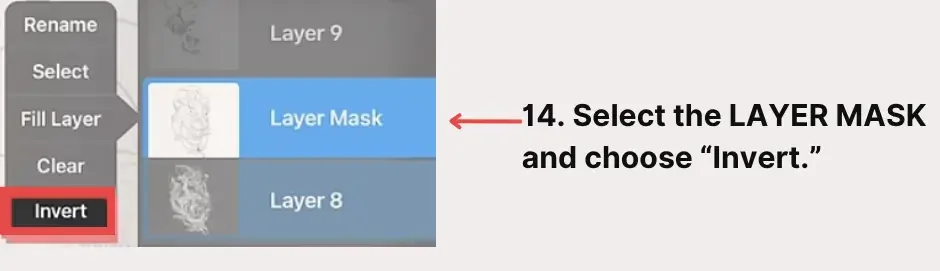
Invert the Layer Mask.
With your Mask selected, choose “Invert.”
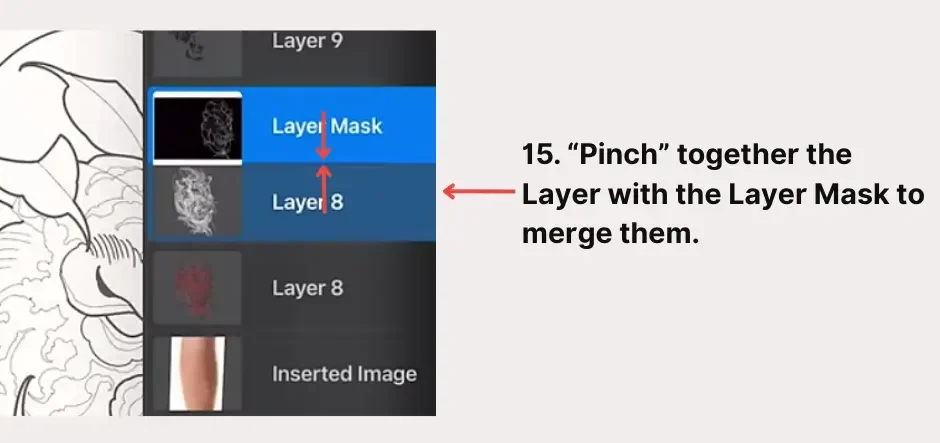
Merge Your Original Layer with the Layer Mask.
Merge your linework layer with the layer mask. You can merge these layers into one by “pinching” them together on the screen.
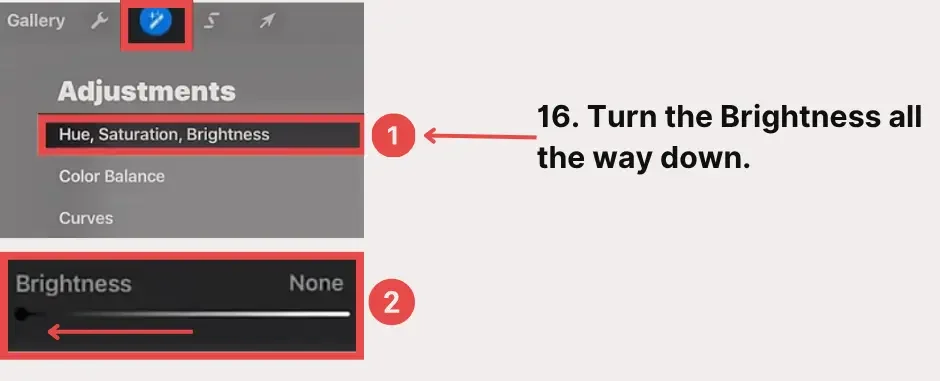
Turn the Newly Merged Layer’s Brightness All the Way Down.
To turn down the Brightness, choose “Adjustments” (the magic wand in the upper left corner) and select “Hue, Saturation, Brightness.”
Turn the Brightness all the way down by moving the slider to the left.
You’re done! You’ll now have a clean version of your linework ready to go.
Final Thoughts
Procreate is intended to help you draw faster and easier. (It tends to be the preferred app over similar technologies for tattoo artists.)
It can be hard to learn at first, but taking the time required to understand Procreate will improve your artwork and continue to speed up the design process. It also gives you more control over your stencil with the ability to create perfect lines. So stick with it, and check out this playlist for more Procreate tutorials.Become a Tattoo Artist With the Artist Accelerator Program
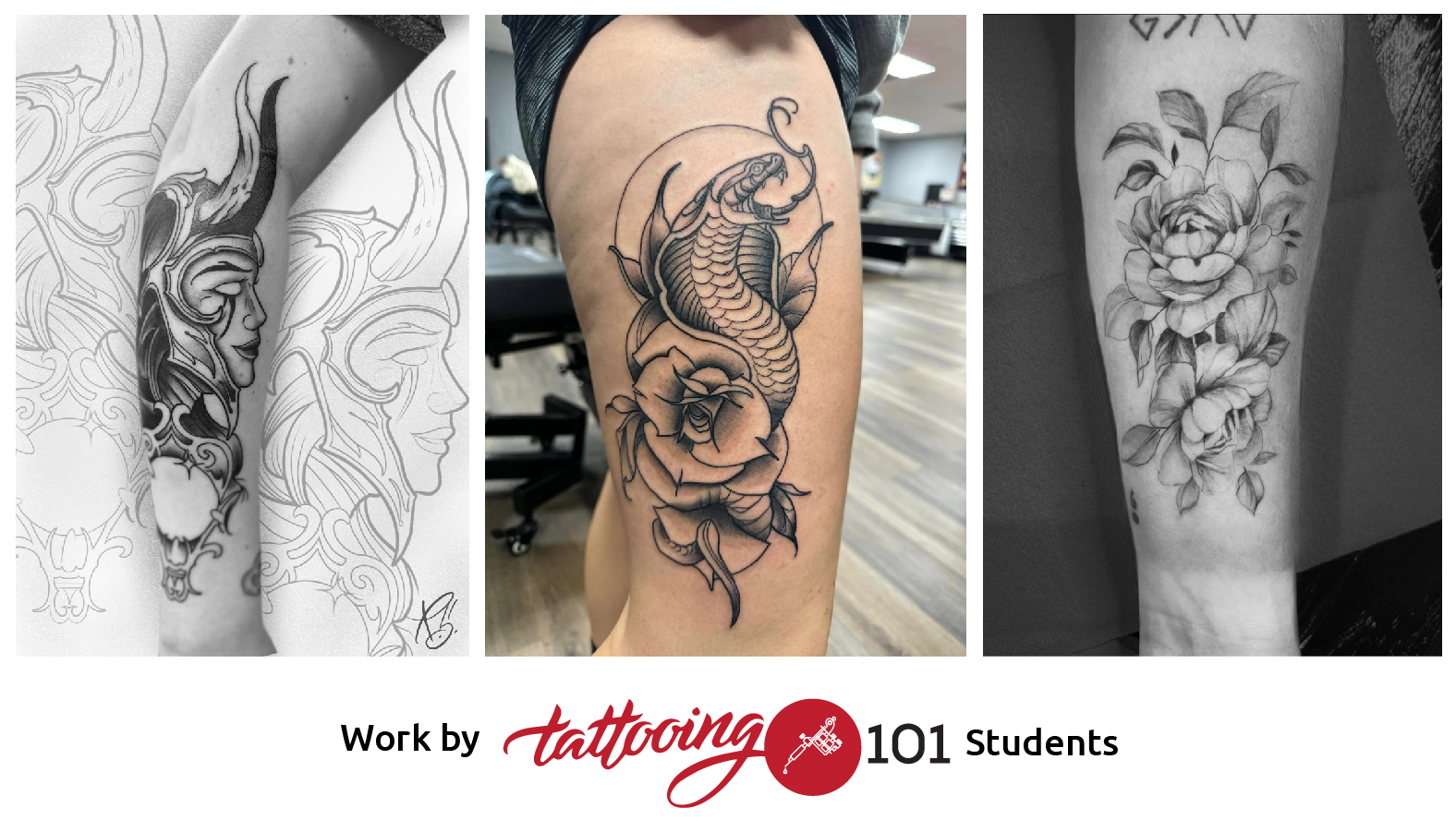
Having a career in tattooing is not only fulfilling, but it’s also the most stable way to make a living as an artist. However, for decades, the process to become a tattoo artist has been notoriously difficult.
The apprenticeship process requires aspiring tattoo artists to work 50-60 hours a week without pay for 2-4 years. That, combined with the toxic culture of abusing apprentices, makes getting into the industry almost impossible for newcomers.
That’s why we created the Artist Accelerator Program. Our online course provides a simple, structured way of learning to tattoo that has been proven to work by over 7500 successful students, with many of them having gone on to open their own shops all around the world.
Inside the program, we’ll take you through every step of the tattooing process in 9 clear, easy-to-follow modules and support you along the way within the Tattooing 101 Mastermind online community.
In the Mastermind group, you’ll collaborate with other students, get answers to your questions, and receive personalized video feedback on your artwork and tattoos from professional tattoo artists. With this friendly community of both new and experienced tattoo artists, you’ll never be stuck again.
When you join the Artist Accelerator Program, you’ll have instant access to the full course and the Mastermind community, as well as our 30-Day Flash Challenge and recorded interviews with tattoo artists from all over the world.
Click here to learn more about the Artist Accelerator Program.